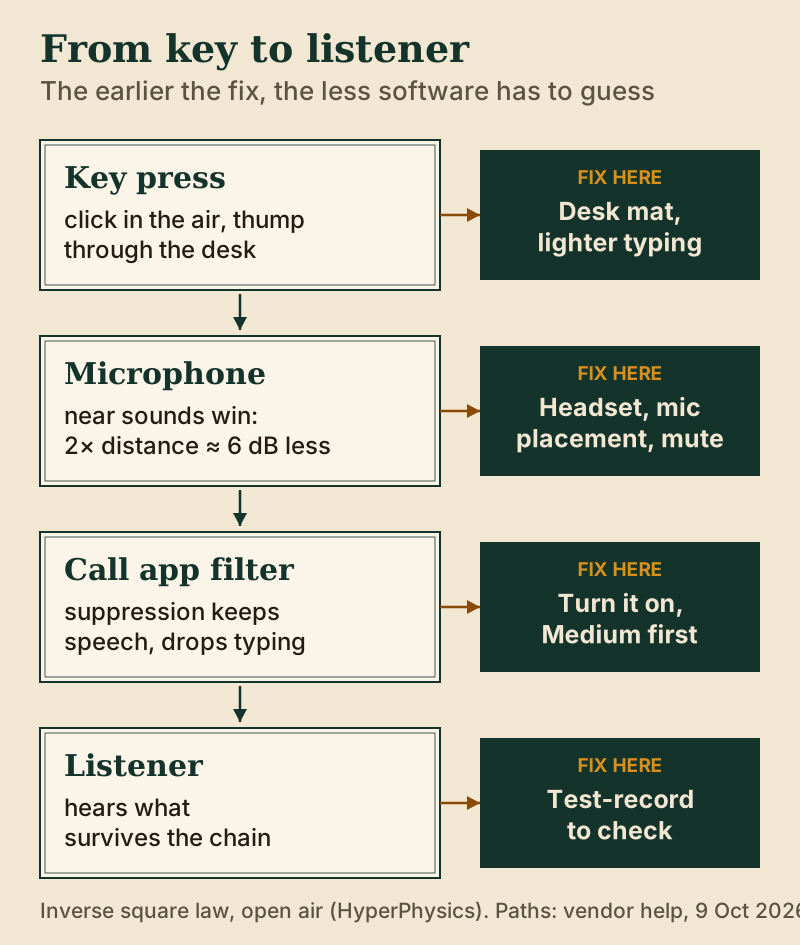
To stop your mic picking up keyboard typing, fix it in three places, in this order. First, put distance between the keys and the microphone, because a mic hears a near sound far louder than a far one. Second, turn on the keyboard-friendly setting in your call app: Zoom's background noise suppression, Teams noise suppression, Google Meet noise cancellation, Webex smart audio or Discord's Krisp. Third, stay muted while you type, using push-to-talk or a mute shortcut. Most people only need the first two.
This guide is for live calls and voice chat on a computer. It covers the settings in each app side by side, explains why a laptop is the worst place for a microphone if you also type on it, and lists the free physical fixes before anything you'd pay for. For a deeper Zoom-only walkthrough, see our page on how to stop keyboard typing noise in Zoom.
Why your mic hears every key
A keystroke reaches a microphone by two routes. One is through the air: the click of the key and the clack of it bottoming out. The other is through the desk: the thump of each press travels through the surface into anything resting on it, including a laptop's built-in mic or a desk-stand microphone. The second route is why typing can sound louder on a call than it does in the room.
Distance does most of the damage. In open air, sound from a small source follows the inverse square law: twice the distance gives a quarter of the intensity, which is about 6 dB quieter. A laptop's microphone usually sits a few centimetres from the keyboard and much further from your mouth. On that layout the keys win, and no software is going to reverse the ratio completely. A headset mic near your mouth flips it the other way, so your voice is many times closer than the keys.
The type of microphone also matters. A mic that picks up from all directions hears the keyboard as clearly as it hears you. A directional mic aimed at your mouth, with the keyboard behind or beside it, hears less of the desk. Placement is free, and it is the fix that keeps working when you switch apps.
App-by-app settings that target keyboard noise
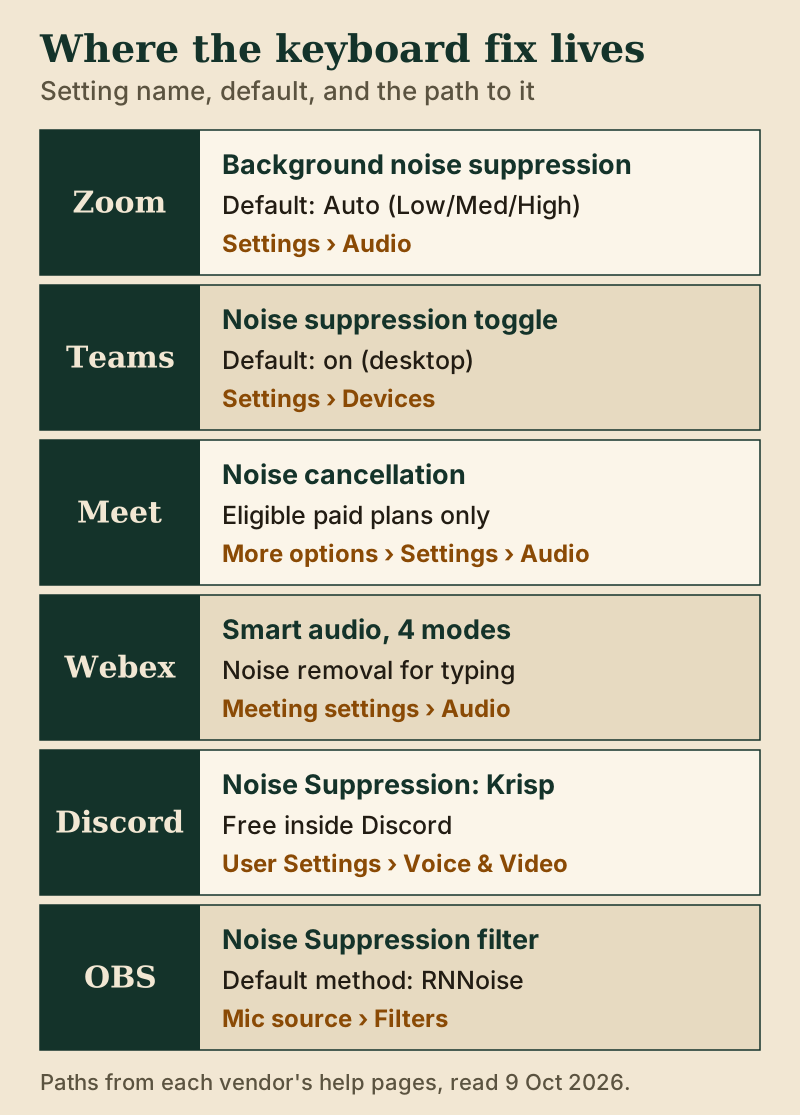
Every major call app now has a filter for background sound. What differs is the name, where it lives and whether you can set its strength. As of 9 October 2026, this is where each one sits.
Zoom
Open Settings, then Audio. Under Microphone modes, select Noise removal (the default), then use the Background noise suppression dropdown. Auto is the default. Zoom describes Medium as the level for standard environments with sounds like fans and pen tapping, and High as the most aggressive, which can also remove background speech and may increase CPU use. For typing, try Medium first and move to High only if keys still come through. On Linux, Zoom only lets you set the suppression level. In the web app you choose between Zoom's own noise removal and the browser's built-in noise suppression. More detail is in our Zoom background noise suppression guide.
Microsoft Teams
The new Teams desktop app reduces noise suppression to one on/off switch, found under Settings and more, then Settings, then Devices, and it starts switched on. During a meeting it is under More actions, then Audio settings. The Auto, Low and High levels that older guides describe are now listed by Microsoft for iOS only, where High suppresses all background sound that isn't speech. If you share a desk area with others, voice isolation goes further: record a voice profile under Settings, Recognition, Start voice capture, and Teams removes sounds that don't match your voice. Our guide to Teams noise suppression covers the toggle and the greyed-out case.
Google Meet
Open More options, then Settings, then Audio, and turn on Noise cancellation. Google lists typing among the noises it removes. The catch is eligibility: the cloud-based version is for certain paid Google Workspace editions and Google One subscribers with 2 TB or more, and it's off by default in some education editions. A personal Google account only gets an on-device version, and only on most Android phones, so it won't touch typing on a laptop. Details are in our Google Meet noise cancellation page.
Webex
Webex smart audio has four modes: Music mode, Noise removal, Optimize for all voices and Optimize for my voice. In a meeting, find it under Meeting, Meeting settings, Audio, or in the dropdown on the Mute button. Noise removal handles typing. Optimize for my voice also removes background speech, which is the stronger choice in a shared office. Music mode sends your original sound, keys and all, so check it isn't left on. See Webex background noise removal.
Discord
Discord's built-in noise suppression is Krisp, and inside Discord it costs nothing. Switch it on from the Noise Suppression button during a voice chat, or go to User Settings, Voice & Video, Noise Suppression. Mac support is limited to Apple-silicon machines on macOS 12 and up, and the browser version runs only in desktop Chrome or Firefox.
OBS Studio
If you stream or record, OBS has its own Noise Suppression filter with three methods: RNNoise (the default, higher quality and more CPU), Speex (its suppression level starts at -30 dB) and NVIDIA Noise Removal, which depends on NVIDIA's Broadcast SDK plus an RTX card. Add it to your mic source under Filters.
Noise gate vs AI suppression for typing
These two tools are often confused, and they handle typing very differently.
A noise gate is a volume threshold. Below the threshold the mic is closed; above it, it opens and lets everything through. Out of the box, OBS's Noise Gate filter uses a -26 dB open threshold and a -32 dB close threshold. A gate is excellent at silencing typing in the gaps when you aren't talking. The moment you speak, the gate opens and the keys come through with your voice, because the gate can't tell them apart. Set the threshold too high and it clips the start and end of your words instead.
AI suppression works on what the sound is rather than how loud it is. It tries to keep speech and remove everything else, including typing that happens while you talk. That is why the app settings above are the better first move for most people. The cost is that a very aggressive setting can make your voice sound thinner, and strong suppression can use more processing power.
The two combine well. Suppression handles keys under your voice; a gentle gate or push-to-talk handles the long stretches of typing while you listen.
Free physical fixes for keyboard noise on your mic
Before you touch a single setting, change the geometry. On a laptop, the cheapest real fix is any microphone that isn't built into the laptop: the mic on a pair of wired earbuds, a phone headset or a USB headset all sit close to your mouth and far from the keys. If you'd rather keep the laptop mic, plug in an external keyboard and push the laptop back, so the built-in mic is no longer sitting directly above the keys you're pressing. Our comparison of a laptop mic, a headset and software walks through the trade-offs.
With a desk microphone, lift it off the desk you type on. A boom arm clamped to the desk edge or a stand on a shelf breaks the path the thump takes through the surface, and pointing the front of a directional mic at your mouth puts the keyboard behind it, where it hears least. A thick desk mat or a folded towel under the keyboard softens the bottom-out thud, and a lighter touch on the keys helps more than most people expect, particularly on a mechanical board.
Push-to-talk and mute shortcuts
If you mainly type while others talk, the simplest fix is to be muted while your hands are on the keys. Each app has a shortcut for it. In Zoom, Alt+A on Windows and Linux, or Command+Shift+A on a Mac, toggles mute, and holding the Space bar unmutes you only while it's held. In Teams, Ctrl+Shift+M toggles mute, and Ctrl+Spacebar unmutes you while held, once Keyboard shortcut to unmute is switched on under Settings, Privacy. In Google Meet, Ctrl+D (⌘+D on a Mac) mutes and unmutes. Discord has a Push to Talk input mode under User Settings, Voice & Video, which keeps the mic closed until you hold your chosen key. More on the app side is in our guides to muting in Zoom and muting in Teams.
Push-to-talk has one weakness: you have to remember it. In a fast discussion, people forget to hold the key and get cut off mid-sentence, so it suits streams, gaming and large meetings better than a lively one-to-one.
When an always-on app helps
The app settings above have one limit: each works only inside its own app. If your day moves between Zoom, Teams, a browser-based call tool and a recording app, or one of them has no filter you can control, a system-level noise cancellation app is the cleaner answer. It creates a virtual microphone, and every app that uses that mic gets the cleaned signal.
Windows 11 has some of this built in. Voice Clarity works on Windows 11 machines with either x64 or Arm64 chips. It only kicks in for apps built on the Windows communications mode, and it stands aside if the PC maker's audio driver already handles that processing. Windows Studio Effects adds Voice focus, but it needs a PC with an NPU. NVIDIA Broadcast is another option on Windows if you have an RTX 2060 or better graphics card; NVIDIA's requirements name only 64-bit Windows 10.
Krisp is the cross-app option we cover most on this site. It installs a Krisp Microphone that you select in each call app, and it processes the audio on your own computer. As of 9 October 2026 there is no free plan: new accounts can try everything for seven days without entering a card, and once that week ends, cancelling noise means paying for a plan. On a yearly bill, Core works out at $8 for each user per month; month by month, it's $16. You'll need 64-bit Windows 10, Windows 11 or macOS 14 or newer; Linux and ChromeOS aren't supported, and the live noise cancellation is desktop-only. Our Krisp review has the full picture.
Skip it if you use one call app and its own filter already handles your keys. Paying for a second layer of suppression only makes sense when the built-in one is missing, switched off by an administrator, or isn't enough for the desk you work at. If you only ever type in Discord, its built-in suppression already costs nothing and you don't need the desktop app.
Edge cases
The keys disappear in silence but come back when you talk
That is how a noise gate behaves, and it usually means the gate is doing the work rather than suppression. Discord's input sensitivity slider and OBS's Noise Gate filter both work this way. Turn on the app's AI suppression as well, and keep the gate as a backstop for the quiet stretches.
Your voice sounds thin after you turned suppression to High
Strong suppression can take some of your voice along with the noise. Step back one level, to Medium in Zoom for example, and fix the remaining keys with placement. If the laptop mic is the problem, no level will sound natural; a headset will.
Someone else's typing is the problem
Your own app settings clean what you send, not what you receive, so the fix belongs on their side. Send them this page, or ask the host to mute them while they take notes. Krisp is one of the few tools that can also clean incoming audio, through its Krisp Speaker device, if this happens on every call with the same colleague.
Discord still picks up your keyboard with Krisp on
Discord switches Krisp off automatically when your CPU is very busy, which often happens mid-game. It also doesn't run on Intel Macs, on macOS older than 12, or in browsers other than desktop Chrome and Firefox. In those cases push-to-talk is the dependable fallback.
Keyboard noise on your mic: FAQ
How do I stop my mic from picking up my keyboard?
Move the microphone closer to your mouth and away from the keys, then switch on your call app's suppression: Zoom's background noise suppression, Teams noise suppression, Meet noise cancellation, Webex Noise removal or Krisp in Discord. If you type a lot while listening, add push-to-talk or the mute shortcut so the mic is closed while your hands are busy.
How can I reduce keyboard noise on my mic without buying anything?
Use the suppression already in your call app, use the mic on a pair of earbuds instead of the laptop's built-in one, put a towel or mat under the keyboard, and type with a lighter touch. Push-to-talk and mute shortcuts cost nothing and remove typing completely while you aren't speaking.
Is keyboard noise suppression on by default?
Mostly, yes. Zoom's background noise suppression is set to Auto, Teams noise suppression is on in the new desktop app, and Google Meet noise cancellation is on by default for eligible business and Google One 2 TB plans, though it is off by default in some education editions. In Discord you turn Krisp on yourself.
Does keyboard noise cancellation work while I'm talking?
AI suppression does, because it separates speech from other sounds rather than reacting to volume. A noise gate doesn't: it opens whenever you speak and lets the keys through with your voice. That is why the app-level suppression is the better first fix for people who type during calls.
Why is my keyboard so loud on calls when it sounds quiet in the room?
Because the microphone is much closer to the keys than anyone in the room is, and because the desk carries the thump of each key into a laptop or desk-stand mic. Close sounds are loud to a microphone, which is why moving the mic or the keyboard helps more than any setting.