When Zoom audio is not working, the fault is almost always in one of three places: you never joined the meeting's audio, Zoom is sending sound to the wrong speaker, or Zoom can't reach your microphone. The symptom tells you which. If nobody hears you and you hear nobody, look for a Join audio button first. If you can't hear anyone but they can hear you, it's your speaker side. If you hear everyone but they can't hear you, it's your microphone side. Fix the side that failed and leave the other alone.
This guide covers the Zoom desktop app on Windows and macOS, then the phone app. Every path below comes from Zoom's own support articles, plus Microsoft's and Apple's pages for the permission settings, all read on 18 October 2026. Echo and a voice that keeps cutting in and out are different faults with different fixes; for echo, see our page on how to fix echo in Zoom.
Name the symptom before you touch a setting
Send one line in the meeting chat: "Can you hear me, and can everyone hear each other?" If others hear each other but not you, the fault is your microphone. If they hear you and you hear silence, it's your speaker. If you're not connected at all, it's the join state.
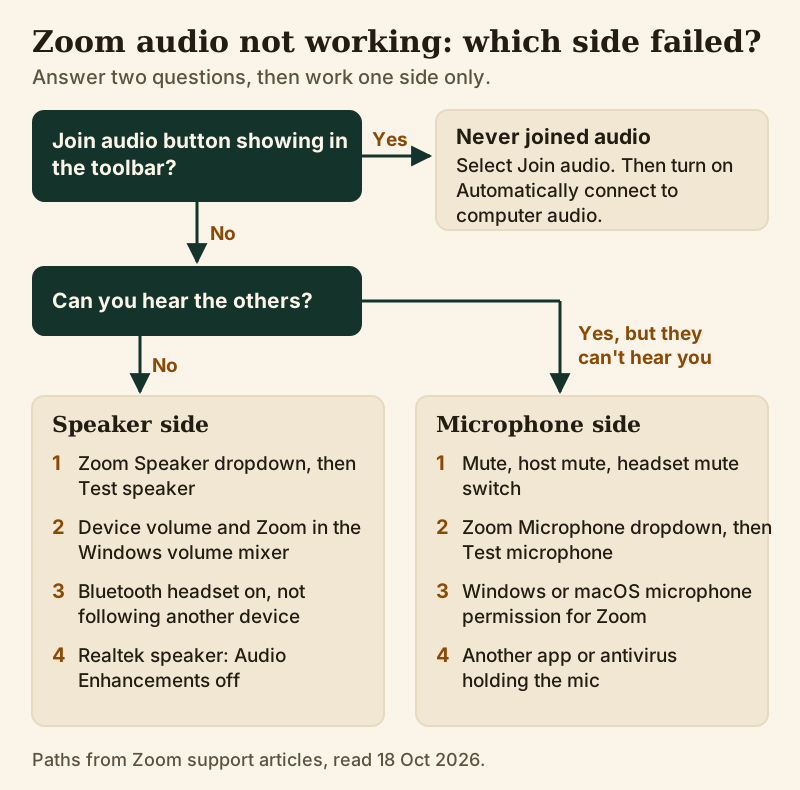
Each branch ends at one side of your setup, with its checks in a fixed order. A reinstall comes last, because almost every cause here survives one untouched.
No sound either way: you never joined audio
The most common silent meeting is one where Zoom never connected your computer's audio. When you join without the automatic option switched on, Zoom offers a speaker and microphone test and then waits for you to select Join audio in the meeting controls. Skip that prompt and you sit in the meeting with no audio path at all. If the toolbar shows Join audio where the Mute button should be, select it.
To stop it happening again, sign in to the desktop app and open Settings from your profile picture, then go to Meetings & webinars. Under Join experience, find When joining meetings and webinars and toggle on Automatically connect to computer audio. Zoom notes two things about this setting: if you don't see it, an admin may have disabled it, and you may want it off if you sometimes join by telephone instead.
You can't hear anyone: the speaker side
Zoom has a speaker setting of its own, independent of the output your system uses for music or video. That is why a browser tab can play sound while the meeting stays silent. Fix the Zoom choice first, by name.
- Open Settings from your profile picture, then the Audio tab.
- Under Speaker, pick your headset or speakers from the dropdown rather than trusting the default.
- Select Test speaker. If you hear no tone, try the next device in the list or raise the Output volume slider.
- In a meeting, click the upward arrow beside Mute to switch the speaker without leaving.
If Zoom's test plays but the meeting is still quiet, look below Zoom. Raise the device volume itself; Zoom points out that your computer can be muted even while Zoom's speaker is on. On Windows, Zoom also tells wired-headphone users to open the volume mixer and make sure the Zoom app isn't muted there, since each app keeps its own slider.
Bluetooth adds a quieter failure: a headset paired to both phone and laptop can follow the phone while the laptop still shows it connected. Zoom's advice is to check the device is on and connected properly; switching your phone's Bluetooth off for one call proves it either way.
Silent on Windows with Realtek speakers
Zoom documents one Windows case: no meeting sound through the default Realtek(R) Audio speaker. Its fix is Settings, Sound, select that speaker under Output, and set Audio Enhancements to Off. If nothing changes, set it back.
Nobody can hear you: the microphone side
Start with mute, because it's the cause more often than anything technical. If the Audio icon in the meeting controls shows you as muted, click it. If you stay muted, the host may have muted you on entry, and Zoom's answer is to ask them through chat. Headsets and USB mics often carry a physical mute switch too, which looks fine on screen and sends nothing.
Next, the device. In Settings, Audio, pick your microphone by name under Microphone, then select Test microphone. Zoom captures a short clip of you and replays it, and the Input volume bar should move as you speak. No movement means Zoom isn't getting a signal from that device, which points to permission or to another app.
- Windows 11: Start, Settings, Privacy & security, then Microphone. Turn on Microphone access, then both toggles below it: Let apps access your microphone, plus Let desktop apps access your microphone.
- macOS: Apple menu, System Settings, Privacy & Security, then Microphone, and turn Zoom on in the list.
- Another app: Zoom's own list says to check that nothing else is holding the mic, so quit Teams, a recorder or a game chat client and test again.
- Security software: Zoom names Kaspersky as an example of antivirus that can stop apps from reaching the mic, so check that Zoom is allowed there.
If Zoom doesn't list your microphone at all, unplug it and plug it back in; Zoom's own article suggests exactly that when detection fails. Windows users can also try turning off Signal processing by Windows audio device drivers in Zoom's advanced audio settings, which Zoom lists as an option when a driver's own processing gets in the way.
The two-minute isolator: test outside a real meeting
Before an important call, use Zoom's own test meeting at zoom.us/test, or the speaker and microphone test Zoom offers as you join. A test that passes on the same device, with the same headset, tells you the hardware works and the problem lives in that meeting's settings. A test that fails tells you to stop blaming the meeting.
The second isolator is your phone. Join the same meeting from it with the laptop's audio disconnected. If the phone works, the meeting and network are fine and the computer is at fault. Our audio test before a meeting page explains what to listen for in the playback.
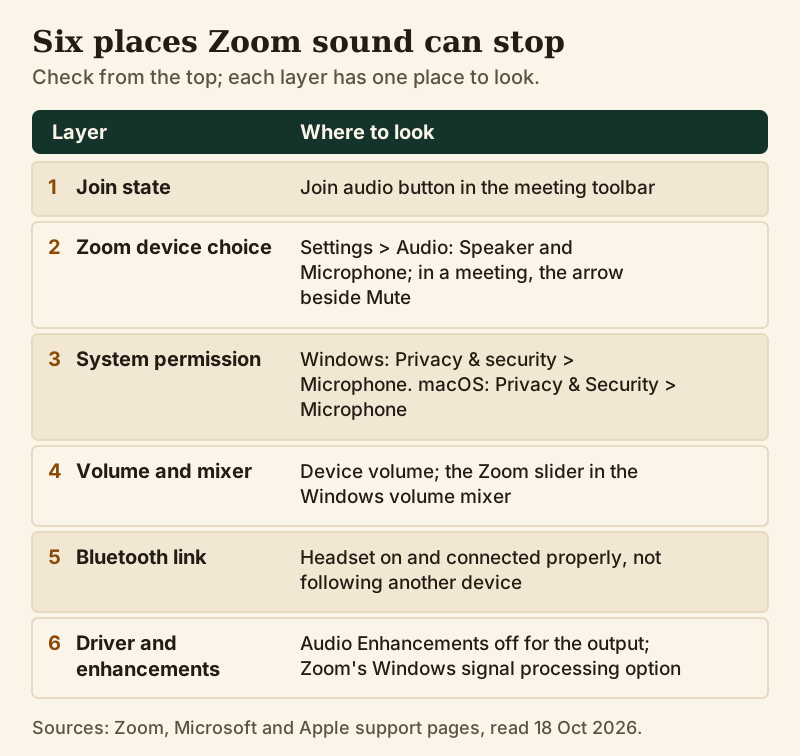
Zoom audio on a phone
Zoom's troubleshooting article for the mobile app keeps the list short. If you can't hear others, tap the speaker icon in the top-left corner if it's off, then raise the phone's volume; silent or vibrate mode stays quiet even with Zoom's speaker on. If others can't hear you, tap Join Audio if it appears, choose Call Over Internet and allow microphone access.
On iPhone, Zoom's path for the permission is Settings, Privacy, Microphone, with the Zoom toggle on. On Android it's Settings, Apps & notifications, then App permissions or Permission Manager, and Zoom warns that the menus vary by manufacturer. After that, close other apps that might be holding the microphone, restart the phone, and only then reinstall.
Edge cases that look like broken audio
A virtual microphone is selected
Noise tools, recorders and streaming apps install virtual devices, and one of them can become Zoom's microphone or speaker without you noticing. A virtual device only passes sound while its own app is running. If the dropdown shows a name you don't recognize, pick your real headset by name, test, and only then bring the virtual device back if you need it. When Krisp Microphone goes missing from an app's list, for example, Krisp's help center tells you to check that you're signed in to Krisp.
It works, but sounds raw or roomy
That isn't silence; it's processing switched off. Original Sound for musicians stops Zoom cleaning your microphone, and it stays on until you turn it off. Our map of Zoom audio settings shows where it lives, and the background noise suppression guide covers the level to use.
Fine in every app except Zoom
Then the system and hardware are healthy, so recheck Zoom's device choice and permission, then update the app. Zoom's general list runs latest version, reinstall, then system updates. Our pre-meeting audio checklist catches the day a new dock changes the default device.
Zoom audio not working: common questions
Why is my Zoom audio not working?
Usually audio was never joined, Zoom is pointed at the wrong device, or your system blocks Zoom's microphone access. Look for a Join audio button, then pick devices by name under Settings, Audio, and run both tests.
Why can't I hear anyone on Zoom?
Your speaker side has failed. Choose the device under Speaker in Settings, Audio, run Test speaker, raise the volume, and on Windows check Zoom's slider in the volume mixer. Then suspect a Bluetooth headset following another device.
Why can't people hear me on Zoom?
Check mute first, including a host mute and any headset switch. Then select your microphone by name and run Test microphone. If the input bar stays still, grant Zoom access in your privacy settings and close other apps using the mic.
How do I test my audio in Zoom?
Open Settings in the desktop app, choose Audio, and use Test speaker and Test microphone; the mic test records you and plays it back. You can also use Zoom's test meeting at zoom.us/test, or the speaker and microphone test offered when you join a meeting.
Why does Zoom audio work on my phone but not my laptop?
Because the meeting and connection are fine and the laptop is the problem. Check its Zoom device choices, microphone permission and volume mixer, and whether a headset is still paired to the phone.