Echo on a Teams call is almost always a loop: sound comes out of a speaker, goes back into a microphone and is sent to the meeting again. Whoever is causing it rarely hears it. Everyone else can. So the first fix isn't a setting at all. It is working out which of four loops you have, because the cure for each one is different, and the fastest of them takes seconds.
Paths checked against Microsoft's Teams help (new Teams, Windows and Mac) and Citrix's knowledge base.
If you hear your own voice coming back, someone else's speakers are the source. If others say they hear themselves whenever you're unmuted, the loop is on your side. If the echo turns into a howl when two people in the same room join, it's a double join. If it only happens on a virtual desktop, it's the VDI setup, and that one belongs to IT.
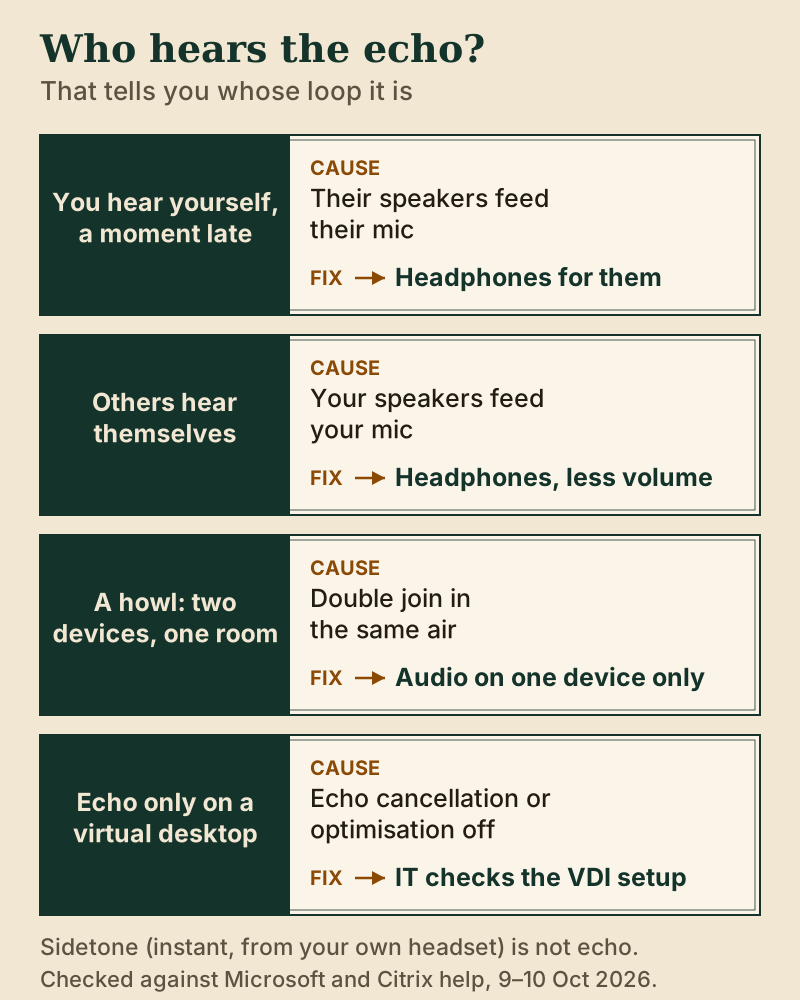
Who hears the echo? Four patterns, four causes
Most advice on Teams echo mixes these together, which is why people work through fixes that were never going to help them. Start by naming the pattern.
Pattern 1: you hear your own voice, a moment late. Your voice leaves your headset, reaches another participant, comes out of their laptop speakers, goes into their microphone and comes back to you. The source is their device. Nothing in your settings will stop it.
Pattern 2: others hear themselves when you're unmuted. Now the loop is yours. Meeting audio is playing through your speakers loudly enough for your microphone to pick it up. You won't hear the echo, which is why colleagues have to tell you.
Pattern 3: a howl or a doubled voice when two devices in one room are live. Two laptops in a meeting room, or a laptop and a phone on the same desk, both joined with audio on. Each one plays the meeting aloud and each one picks up the other's speaker. This loop can build into feedback.
Pattern 4: echo that only happens on a virtual desktop. If your Teams lives in a Citrix or Azure Virtual Desktop session and the echo disappears when you use a locally installed Teams, the cause is how audio is handled in the virtual session.
1. Trace the echo to its source
When you're in pattern 1, the job is to find the open microphone that is replaying the meeting. Watch the participant list while somebody else is talking: an unmuted participant whose mic indicator lights up when they aren't speaking is a strong suspect, because their mic is picking up the meeting from their speakers.
If you organise the meeting, you can test that directly. Open People, hover over the person in the Participants pane, and choose More options > Mute participant. Mute suspects one at a time. When the echo stops, you've found the source. This mutes them without taking away their ability to unmute, so ask them to switch to headphones, then let them back in. Mute all in the participant list does the same for everyone at once, which is a quick way to confirm the echo is coming from a participant at all.
Zoom's support article on echo lists the same three causes you'll see in Teams: computer audio and phone audio both active for one person, speakers too close to a microphone, and several computers with audio on in one room. The loop is a property of rooms and devices, not of one app.
2. Join second devices without audio
Pattern 3 is the self-inflicted one. Microsoft has built a guard against it: when you add a second device to a meeting you're already in (a phone to share slides from, say), Teams automatically turns off the camera and the mic on the extra device as it joins, which Microsoft says is "to prevent an echo effect". When you join a nearby meeting room, Teams turns off the second device's speaker as well.
The loop comes back when that guard is bypassed. Joining the same meeting twice from the link rather than adding the device, unmuting the phone later "just to check", or two colleagues in one room both joining from their own laptops with audio on: each of those puts two live mic-and-speaker pairs in the same air.
The rule for shared rooms is simple. One device carries the audio. If the room has a Teams room system, connect to it with Room audio as you join and let it be the only speaker and microphone. The other people in the room connect with their audio turned off, or wear their own headphones and keep their mics muted until they speak.
3. Use headphones (and ask the same of the culprit)
Headphones end patterns 1 and 2 at once, because the meeting audio goes into ears rather than into the air where a microphone can hear it. Any wired or Bluetooth headphones do this. For pattern 1, the headphones need to go on the person who is causing the echo, which is why the tracing step above comes first.
If headphones aren't possible, turn the speaker volume down and put distance between the speakers and the microphone. Teams has its own echo cancellation, but loud speakers right beside an open mic in a hard-surfaced room give it far more to remove than a quiet speaker across the desk.
4. Check your device pairing in Settings → Devices
A quieter cause of pattern 2 is a mismatched pair: the laptop's microphone is selected while the meeting plays through separate desk speakers or a monitor's built-in speakers. That puts a loud speaker and an open mic on different devices in the same air. A headset used as both speaker and mic takes the meeting audio out of the room entirely.
- In Teams, open Settings and more > Settings > Devices.
- Set Speaker and Microphone to the same headset where you can.
- Choose Make a test call under Audio settings. The test call bot records a short message and plays it back, then gives you a summary of how your mic, speaker and camera are working.
Microsoft notes that the test call is currently available only in the Teams desktop app for Windows and Mac, not in Teams on the web.
On Windows, sound "enhancements" added by the PC maker's audio driver can interfere with echo cancellation. Microsoft's own troubleshooting advice is to turn them off: open Start > Settings > Sound, select your device under Output, go down to Advanced settings, and switch Audio enhancements to Off. Then make another test call.
Teams device settings, and when noise suppression helps
Teams' Noise suppression toggle sits in the same place, Settings and more > Settings > Devices, and in a meeting under More actions > Audio settings. It is on by default. It is built to remove background noise, such as a fan or keyboard. Echo is different: it's speech, your own or someone else's, coming back, so noise suppression isn't the tool that removes it.
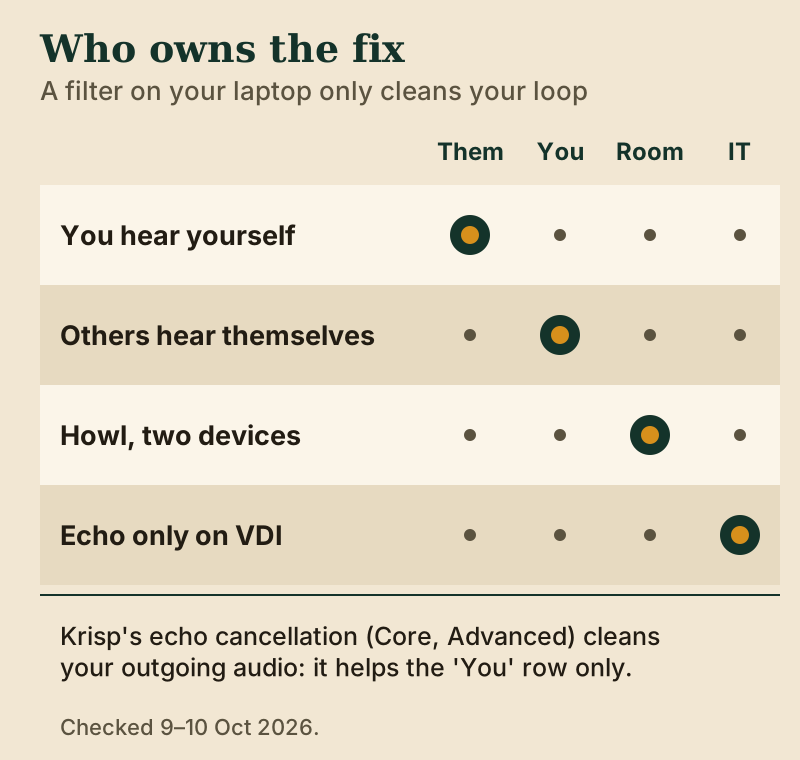
Voice isolation is closer, but it's still not an echo cure. Once you've recorded a voice profile under Settings > Recognition > Start voice capture, Teams can remove other voices and sounds that don't match your profile. The profile is stored on your own device. It's useful in a shared office, but it acts on your outgoing audio only, so it can't stop someone else's loop.
For pattern 2, a desktop filter that removes echo before Teams sees your mic is the other route. Krisp's noise-cancellation features include echo cancellation, which Krisp describes as eliminating acoustic echo caused by speaker sound reaching the microphone. It's on by default in its Core and Advanced plans, and the same filter covers Zoom and Meet too.
If the echo starts at your desk
Krisp's echo cancellation is on by default in Core and Advanced. Try it for a week without a card; Core is $8 a seat monthly on a yearly plan.
See how Krisp works Read our full Krisp overview →Krisp dropped its free plan: you get a one-week trial of the full product with no card asked, then you pay or lose access. Krisp's pricing page on 9 October 2026 put Core at $8 per seat a month on yearly billing ($16 paid monthly) and Advanced at $15 ($30). It's a desktop app for macOS 14 and later or 64-bit Windows 10 and 11. It cleans your outgoing audio, so it won't fix pattern 1, where the loop is on someone else's machine.
VDI and Citrix echo
Pattern 4 has a technical cause. In a virtual desktop, Teams is meant to run "optimised", with the audio handled on your local device. When optimisation fails, Microsoft's VDI documentation says Teams drops back to server-side rendering, which moves all audio and video processing onto the virtual machine and makes the experience worse. Microsoft's VDI pages don't discuss echo specifically. Citrix's knowledge base does, for one setup.
In Citrix article CTX695690, users running Teams in a VDI session from an eLux thin client, with a webcam's built-in microphone and speakers, caused echo for remote participants. The logs showed acoustic echo cancellation was disabled. Connecting a headset stopped it, and the fix was to enable echo cancellation following Citrix's Teams optimisation guide for the Linux Workspace app.
If your echo only happens on a virtual desktop, a headset is the immediate workaround. The real fix is for IT: check that Teams is optimised in your session and that echo cancellation is on for your endpoint. One date matters here: Microsoft lists 1 October 2026 as the end of support for the older WebRTC-based optimisation on Windows endpoints for Citrix and AVD, with end of availability on 1 April 2027.
Headsets that sound like echo (sidetone)
Not everything that sounds like echo is a loop. Many headsets deliberately play a little of your own voice into your ears while you speak. It's called sidetone, and headset makers use it so you don't shout. Jabra defines it as the audio feedback from one's own voice that a headset user hears when speaking into the microphone.
The test is timing. Sidetone is instant: you hear yourself as you speak. Echo arrives a moment late, after a trip through someone else's speakers. If it's instant, adjust or turn down sidetone in your headset's companion app or sound settings, and nobody else in the meeting is affected. If it's delayed, go back to the four patterns above.
Still not fixed?
- The echo is metallic or garbled, not a clean repeat. That's usually a connection or processing problem, not acoustics. Teams' Call health panel (More actions > Settings > Call health) shows roundtrip time, received packet loss and received jitter. Microsoft's typical targets are roundtrip under 200 ms, packet loss under 2% and jitter under 30 ms.
- Echo in one meeting room only. The room system and at least one laptop are both live. Pick one.
- Echo with everyone on headphones. Look for a participant who dialled in by phone on speaker, or someone joined twice under one name.
Frequently asked questions
Why is there an echo on my Teams call?
Because sound from a speaker is reaching a microphone and being sent back into the meeting. If you hear yourself, another participant's speakers are the source. If others hear themselves when you're unmuted, yours are. Headphones on whoever owns the loop end it.
Why do I hear my own voice in a Teams meeting?
If it's slightly delayed, someone else's speakers are feeding their microphone. Watch whose mic lights up while you talk and ask them to use headphones, or have the organiser mute them one at a time. If it's instant, it's sidetone from your own headset, not echo.
How do I stop echo when two people join from the same room?
Let one device carry the audio. Connect to the room system with Room audio if there is one; everyone else joins with audio off. When you add a second device to a meeting you're already in, Teams turns its mic and camera off automatically to prevent echo.
Does Teams noise suppression remove echo?
No. Noise suppression is built for background noise such as fans and typing. Echo is speech coming back through a speaker. Headphones, lower speaker volume or a single audio device per room stop it. Voice isolation also acts on your own outgoing audio only.
Why is there echo in Teams on Citrix or a virtual desktop?
Usually because Teams isn't optimised in the session or echo cancellation is off on the endpoint. Citrix documents an eLux thin-client case where echo cancellation was disabled; enabling it fixed the echo. A headset works around it until IT checks the setup.