When your Google Meet microphone is not working, the cause is almost always one of four gates, and they sit in a fixed order: the operating system has to let the browser use the mic, the browser has to let meet.google.com use it, Meet has to be listening to the right device, and you have to be unmuted. Test them in that order and each check rules out a whole branch, so you find the cause in a few minutes instead of trying fixes at random.
Paths checked against Google, Microsoft and Apple help pages (Chrome, Edge, Safari on macOS 27, Windows 11).
The fastest single test is to open the green room before you join. Click Microphone at the bottom of the preview tile and speak. If the level moves there, the first three gates are open and the problem is inside the meeting. If it stays flat, work down the gates below.
This page is for the laptop or desktop browser. On a phone, the Meet app asks for the mic through the phone's own app permissions, which is a different route.
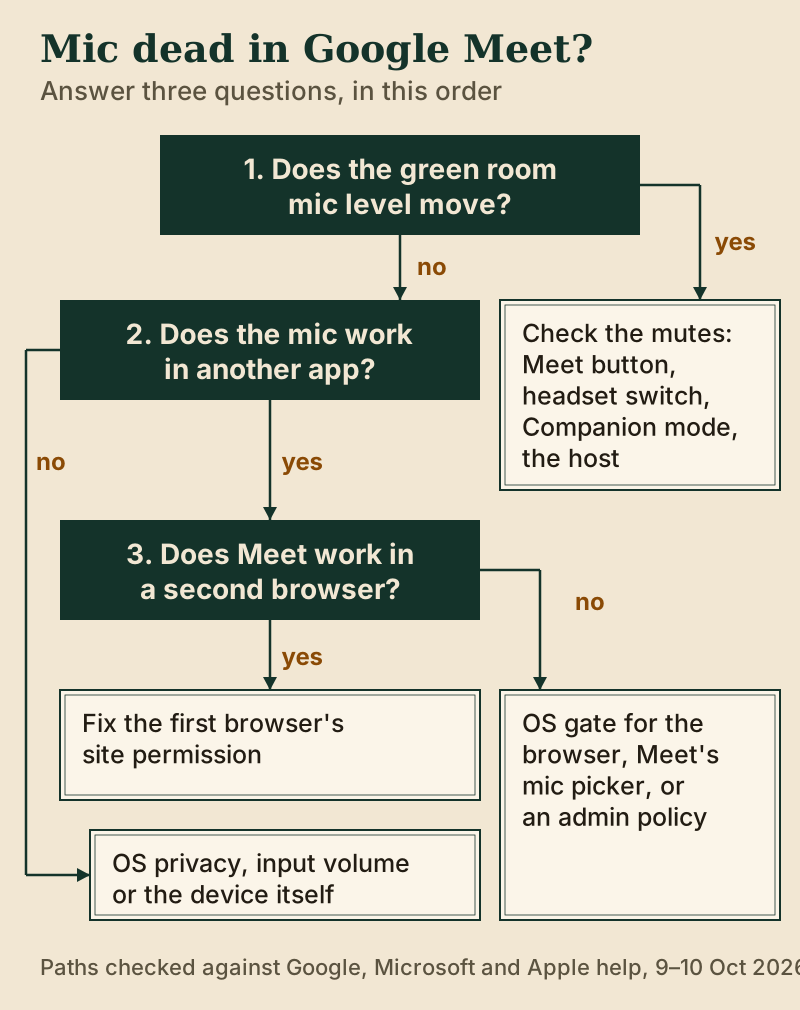
The 30-second triage: is it Meet, the browser or the OS?
Three questions sort nearly every case.
Does the level move in the green room? Before joining, Google's green room self-check shows your devices at the bottom of the preview tile. Click Microphone and speak. A moving level means the browser can hear you, so skip straight to the mute and in-meeting checks further down.
Does the mic work in another app? Open the voice recorder that came with your computer, or any desktop call app, and say a sentence. If the mic is dead there too, the problem is the device or the operating system, and nothing inside Meet will change it. If it works there, the problem lives in the browser or in Meet.
Does Meet work in a second browser? This is the cleanest split there is. If Chrome fails and Edge or Safari works on the same machine, the fault is Chrome's permission for Meet, not your microphone. You have just narrowed the whole problem to one setting.
1. Allow the microphone in your browser
A browser asks once whether a site may use your microphone. Click Block (or close the prompt the wrong way) and the browser remembers that answer for meet.google.com, and the prompt does not come back by itself. This is the most common cause when the mic works everywhere except Meet.
Chrome
- With Meet open, click View site information at the left of the address bar.
- Turn Microphone on.
- Reload the tab and rejoin.
If the toggle is missing or the problem keeps coming back, check the browser-wide setting. Type chrome://settings/content/microphone in the address bar. Under Default behavior, choose Sites can ask to use your microphone, and make sure meet.google.com is not in the "Not allowed" list. The same page is reached through More, Settings, Privacy and security, Site settings, then Microphone under Permissions. It also lets you pick which microphone Chrome offers to sites by default. After changing it, a full browser restart (chrome://restart) clears anything still holding the old answer.
Edge
Open Settings and more, then Settings, then Privacy, search, and services. Choose Site Permissions, then All sites, select meet.google.com and set Microphone to Allow.
Safari (Mac)
Choose Safari > Settings and click Websites. Select Microphone in the list on the left. Find meet.google.com under Currently Open Websites or Configured Websites and set it to Allow or Ask. Deny means the site can't use your microphone at all. The pop-up at the bottom, "When visiting other websites", sets the default for every site you haven't configured.
2. Unblock the browser at OS level
The operating system has its own gate, and it applies to the browser as a whole. If the OS denies Chrome the microphone, every site in Chrome goes deaf, Meet included, and the browser's own setting can show "Allow" while nothing gets through.
Windows 11
Open Start > Settings > Privacy & security > Microphone. Three switches matter: Microphone access (the master switch), Let apps access your microphone, and Let desktop apps access your microphone. Chrome and Edge installed from the web are desktop apps, so that last switch is the one people miss.
macOS
Choose Apple menu > System Settings, click Privacy & Security in the sidebar, then Microphone. Turn access on for the browser you use for Meet. A browser usually needs to be quit and reopened before it sees the change.
ChromeOS
On a Chromebook, the browser and the operating system come from the same place, so the Chrome site permission above is the gate to check first. If the Chromebook belongs to a school or employer, read the managed-account section below before you spend time on settings.
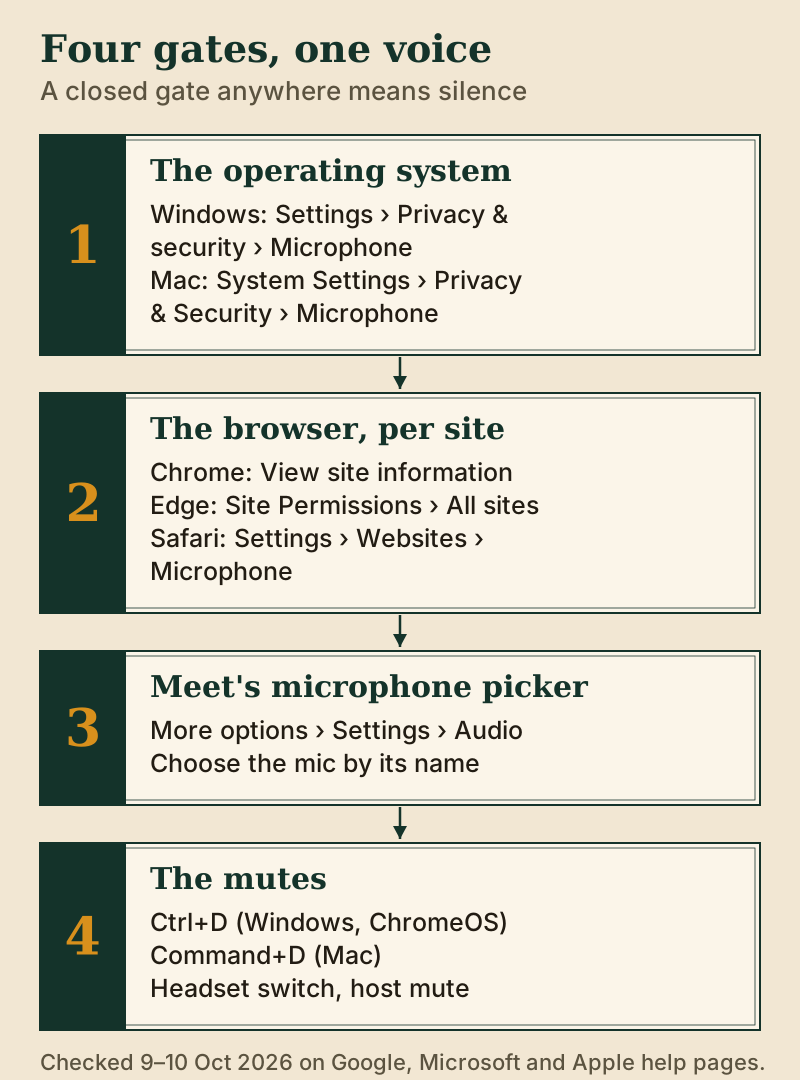
3. Pick the correct microphone in Meet
With both permission gates open, Meet can still be listening to the wrong device. Laptops with a docking station, a webcam that has a built-in mic, and a headset can show three or four inputs, and Meet may pick one you aren't speaking into.
Before you join, open More options > Settings > Audio and choose your microphone by name from the list. In a meeting, the same panel is under More options. Speak while you watch the level indicator. If it stays flat, choose the next device and try again. Choose the device by its own name rather than a generic default entry, so a docking station or a newly plugged-in webcam can't quietly take over.
If the right device is chosen and the level is still flat, check its volume in the operating system. On Windows 11, go to Start > Settings > System > Sound, pick your mic under Input, open its properties with the arrow, and look at Input volume. A slider at zero looks exactly like a dead microphone.
4. Check you're not simply muted
It sounds too obvious to list, and it is still one of the most common answers. There are four separate mutes, and the icon in Meet only shows one of them.
- Your Meet mute. The microphone button in the toolbar. Ctrl + D on Windows and ChromeOS, Command + D on a Mac, toggles it from the keyboard.
- A hardware mute. A switch on a headset cable or a button on the earcup cuts the signal before your computer sees it, so Meet shows you as unmuted while sending silence.
- Companion mode. If you joined with Companion mode, your microphone and speaker are unavailable by design, because that mode is meant for a second screen in a room. Google's fix is to leave and rejoin normally.
- The host's controls. In meetings run from a work or school account, the host can mute participants. Your own button may not override that.
Another app is holding the mic
Some apps take the microphone and keep it. A desktop call app left running in the background, a screen recorder or a streaming tool can claim the device so that the browser gets nothing, or gets a silent stream. Close every app that might use the mic, not just minimise it. Then quit the browser completely (every window, not one tab) and reopen it, so that it asks the operating system for the device again. In Chrome, Google's own advice is to type chrome://restart in the address bar, because closing the window after an update doesn't reset the apps and extensions still holding the mic.
Bluetooth headsets deserve a separate test. If audio plays in your ears but Meet hears nothing, disconnect the headset, reconnect it, and select it again in Meet's audio settings. If it still fails, try the laptop's built-in mic for one call. If that works, the problem is the headset's connection, not Meet.
Work and school accounts: admin blocks
On a managed laptop, someone else may have decided the answer for you. Chrome has an enterprise policy named "AudioCaptureAllowed" (Google lists it as "Allow or deny audio capture"), and organisations can set browser policy for every device they manage. If the microphone works in other apps but Chrome never shows a prompt and the site permission won't stay on, type chrome://policy in the address bar to see what your organisation has set. If a microphone policy is listed there, the fix is a request to IT, not a setting you can change.
Before you file that request, open Meet's own Troubleshooting & help panel under More options. It flags issues it detects, and a red dot on More options means it has found one. Its notes are specific to your meeting, so read them before changing anything. School accounts also differ from business ones in a smaller way: in Google's education editions, Meet's noise cancellation starts switched off, which matters for the next section rather than this one.
It works, but they say you sound noisy
Sometimes the microphone is fine and the complaint is really about the room. That is a different problem with different fixes.
Google Meet's own Noise cancellation is under More options > Settings > Audio. It removes non-speech sounds, such as typing, a door or construction noise, but not other voices or a TV. As of 9 October 2026, Google offers the cloud-based version on certain paid Google Workspace editions (Business Standard and up, Enterprise, Frontline, Workspace Individual, and the Education Standard and Plus editions) and to Google One subscribers with 2 TB or more. On those accounts it's on by default, except in some education editions. For Google Workspace with Gemini users, Studio sound replaces it. Free personal accounts get a device-based version on most Android phones, but not in a laptop browser.
If you're on a free account on a laptop, or you also join Zoom and Teams calls, a desktop noise filter that sits in front of every app is the other route.
Meet hears you now. Does it hear the room too?
Krisp filters the mic before Meet, Zoom or Teams sees it, on Windows and macOS. One trial week, card not asked; Core is $8 a user per month when billed yearly.
See how Krisp works Read our full Krisp overview →There's no free Krisp plan any more: a first-time account gets seven days of everything without a card, and staying on after that week means a subscription. On 9 October 2026, Core cost $8 a month for each user on yearly billing, or $16 if you go monthly. The live filter only works through the desktop app (macOS 14 or newer, or 64-bit Windows 10 or 11), so a Chromebook browser gets nothing from it.
Edge cases that waste an afternoon
- It worked yesterday. A browser update or a reset of site permissions can put Meet back to "Ask". If the prompt appears, answer Allow; if it doesn't, use the site permission path above.
- It works in a personal profile but not a work profile. Browser profiles keep separate permissions. Allowing the microphone in one profile does nothing for the other.
- Only one meeting is silent. If the mic works in Meet's green room and in other meetings, the host's controls for that meeting are the likely cause, not your device.
- External webcam, laptop lid closed. If Meet is still set to the laptop's built-in mic, pick the webcam's mic or the headset by name instead.
- The mic is quiet rather than dead. That's input volume (Windows Sound settings) or distance, not permission. A mic at arm's length on a laptop hinge picks up the room more than you.
Frequently asked questions
Why is my microphone not working on Google Meet?
Usually one of four gates is closed: the operating system has blocked the browser, the browser has blocked meet.google.com, Meet is listening to the wrong device, or you're muted (in Meet, on the headset, or by the host). Check them in that order. The green room's Microphone test tells you which half of the list to start with.
My mic works in Zoom, so why not in Google Meet?
The Zoom desktop app and your browser have separate operating system permissions, and Meet also needs the browser's per-site permission for meet.google.com. If Zoom works, your microphone is fine. Check the browser in the OS privacy list, then the site permission in the browser.
How do I unblock the microphone in Google Meet?
In Chrome, click View site information at the left of the address bar and turn Microphone on, then reload. In Edge, use Settings, Privacy, search, and services, Site Permissions, All sites. In Safari, use Safari, Settings, Websites, Microphone and set meet.google.com to Allow.
Why can't anyone hear me on Google Meet on my work laptop?
If the mic works in other apps but Meet never asks for it, your organisation may manage the browser. Type chrome://policy to see the policies applied. A microphone policy there means IT has to change it. Also check you didn't join in Companion mode, which turns your mic off by design.
What is the shortcut to mute or unmute in Google Meet?
Ctrl + D on Windows and ChromeOS, and Command + D on a Mac. It toggles the microphone button in the meeting toolbar. It won't override a hardware mute on your headset or a mute set by the host.
Meet tells me to make sure my microphone is plugged in, but it is. What now?
Meet can't find a microphone it is allowed to use. Check the operating system first: on Windows 11, Start > Settings > Privacy & security > Microphone, with Microphone access and the desktop-apps switch on, and in the Recording tab of the classic Sound settings make sure the mic isn't disabled (right-click it and choose Enable). Unplug and reconnect a USB or Bluetooth mic, pick it by name under More options > Settings > Audio, and restart Chrome with chrome://restart if another app or extension may be holding it.