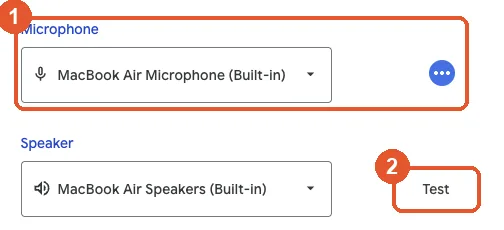
Meet's join screen is a private green room, and Google calls the check you run there the green room self-check. Open your meeting link and, before clicking Join now, click Microphone at the bottom of your preview tile and speak: if the mic bar moves, your mic works, and the dropdown arrow beside it switches to another mic. Then click Speaker and play the test sound. The full panel, More options (⋮) → Settings → Audio, has the same level indicator and a Test button. Twenty seconds, both directions confirmed, nobody heard a thing.
Menu paths checked against Google's official Meet documentation.
1. Run the green-room check
Everything happens on the join screen, before the meeting can hear you:
- Open the meeting link and wait on the join screen — don't click Join yet.
- Click Microphone at the bottom of the preview tile, or open More options (⋮) → Settings and the Audio tab for the full panel.
- Speak at your normal distance and volume — watch the mic level indicator respond.
- Click Test beside the Speakers entry and confirm you hear the tone.
- Close settings and join with both boxes ticked in your head.
2. Read the self-view indicator once inside
Meet keeps a live audio tell on screen during the call:
- Watch the voice indicator beside your self-preview when you speak — it animates with your voice.
- If noise cancellation is on, the ring around it also reflects sound being caught and removed.
- Want to check or switch mics mid-call? Click the arrow next to the microphone button: the device list opens, and its mic bar moves as you talk.
- No movement while talking? Press Ctrl+D / ⌘+D — you're probably muted.
When Meet's filter isn't enough
Meet can only clean audio inside Meet. If your environment is genuinely loud — street noise, kids, a mechanical keyboard — a system-level tool like Krisp filters your microphone before any app hears it, in both directions, and its 7-day free trial (no card required) is enough to tell whether it beats your in-app settings.
Give Krisp a 7-day trial Read our full Krisp overview →3. Make it a two-minute pre-meeting habit for the big ones
Before an interview or a pitch, upgrade the check:
- Join the meeting link five minutes early — alone in the green room.
- Run the mic and speaker checks above, on the exact hardware you'll use.
- Keep a fallback in reach: phone with the Meet app installed, earbuds charged.
Still not fixed?
- Meter moves but callers say you're quiet — raise the OS input level; Meet doesn't boost a weak signal.
- No devices in the dropdowns — the browser lacks mic permission at site or OS level.
- Test chime in the wrong place — change the Speakers selection, then re-Test until it lands on your ears.
- Bluetooth headset connected but silent — its hands-free profile may not have engaged; toggle Bluetooth off and on, then re-run the green-room check.
Frequently asked questions
Can I test my mic without a meeting invitation?
Yes — go to meet.google.com and start an instant meeting with yourself. The green room appears first for the full check, and once inside you can watch your own voice indicator respond with nobody else present.
The indicator moves but colleagues say they can't hear me — why?
The meter proves your selected mic captures sound; it can't prove the meeting is using that mic or that your account isn't muted by the host. Check the in-meeting mic icon, then re-confirm the device selection from inside the meeting rather than the join screen.
Does the join-screen test use the same permissions as the real meeting?
Yes — the green room runs on the same browser and OS permissions the meeting will use, which is exactly what makes it a trustworthy rehearsal. If the meter is dead there, fix permissions before joining anything.